Copy any section as a prompt for your AI coding tool
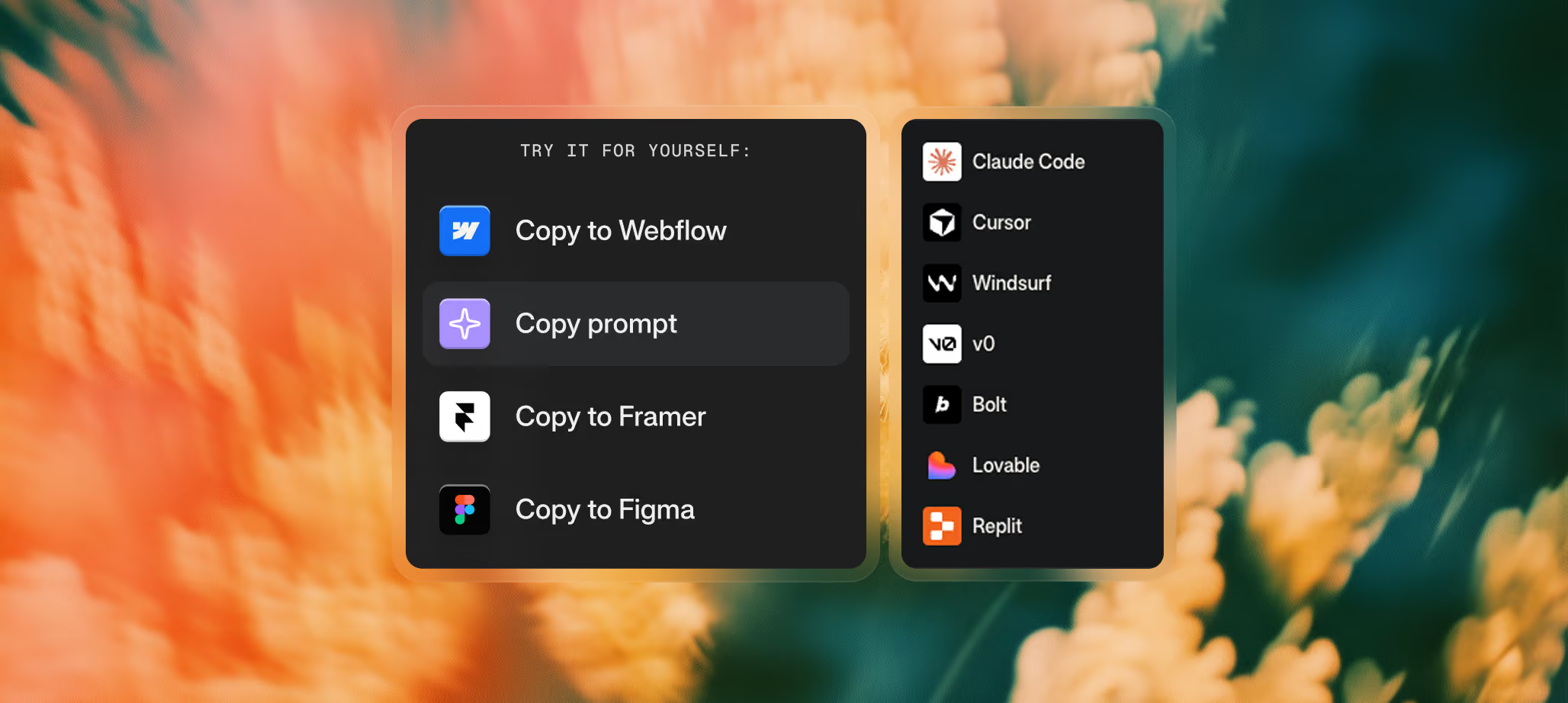
Every section on BYQ now ships with four ways to copy it: to Webflow, to Figma, to Framer, and as a Prompt for AI coding tools. The first three give you a native artifact for that platform. Copy Prompt is different — it gives you a structured brief that an AI coding tool reads, understands, and uses to recreate the section inside your own project.
What Copy Prompt actually contains
A copied prompt isn’t a description of the section. It’s a complete integration brief, written for an AI coding tool to follow end-to-end. Every prompt includes:
- A summary of the section — what it is, what role it plays, and what the dominant visual element is
- The full reference code — a working React/TypeScript implementation of the section with Tailwind classes
- Setup notes — fonts to load, npm packages required (if any), client-component requirements
- Style adaptation instructions — explicit guidance to replace the reference’s colors, fonts, and radii with the user’s existing design tokens, so the output matches the rest of their project
- Integration steps — where to put the file, how to import it, what to wire up
- A detailed breakdown — layout, visual design, content inventory, interactions, animations, and responsive behavior, all spelled out so the AI has full context
The result: when an AI coding tool receives this prompt, it has everything it needs to scaffold the section into your codebase, match your design system, and produce something that feels native to your existing project rather than dropped in from outside.
How to copy a section as a prompt
- Open any section on BYQ.
- Click the “Copy section” button in the top right of the section popup.
- Hover over “Copy Prompt” — a submenu appears listing every supported AI coding tool.
- Click the tool you’re using — Claude Code, Cursor, Windsurf, v0, Bolt, Lovable, or Replit.
- The prompt is now on your clipboard, formatted specifically for that tool.
- Paste it into your AI tool and let it work.
That’s the whole flow. Different tools get slightly different framings of the same underlying brief — for example, the Cursor version is written for Cursor Agent mode, while the Claude Code version is framed as a generic React + TypeScript integration task — but the section content, code, and instructions inside are the same.
Supported AI coding tools
Copy Prompt currently supports:
- Claude Code
- Cursor
- Windsurf
- v0
- Bolt
- Lovable
- Replit
If there’s a tool you’d like to see supported that isn’t on this list, let us know — we add new ones based on what people actually use.
What makes Copy Prompt different from the other copy options
The Webflow, Figma, and Framer copies give you the section as a finished artifact in those tools. Copy Prompt gives you the recipe for the section — designed to be rebuilt inside your codebase, matched to your tokens, and integrated into a live project. A few practical differences:
- Copy to Webflow / Figma / Framer → the section lands as native elements in that tool, with the original template’s exact colors and typography.
- Copy Prompt → the section gets rebuilt by an AI coding tool inside your project, adapted to your colors, your fonts, and your component conventions.
If you’re building in a code project, Copy Prompt is the natural choice. If you’re building in Webflow, Figma, or Framer, those copy options will be faster.
Pairing Copy Prompt with a Design System
Copy Prompt by itself produces a section that adapts to whatever design tokens are already in your project. If you want the section to take on a specific visual identity — say, the look of a particular BYQ template — pair Copy Prompt with a Design System:
- Open your AI coding tool.
- Attach a Design System’s DESIGN.md file from BYQ.
- Then paste the copied prompt from a BYQ section.
The AI now has two layers of context: the Design System tells it the visual language to follow, and the Copy Prompt tells it the specific section to build. The result is a section that looks like it came straight out of the template you chose, built natively in your codebase.
Plan availability
Copy Prompt follows the same plan rules as the other copy options:
- Free plan — you can copy any section in our limited free collection (around 50 sections), including via Copy Prompt
- Pro and Ultra — unlimited copies across every section, including Copy Prompt
There’s no separate quota for Copy Prompt itself. If you can copy a section, you can copy its prompt.
Things to keep in mind
A few practical notes:
- The prompt always reflects the original section. If you change a section’s theme or run it through Edit with AI, the prompt won’t pick up those changes — it stays tied to the section as it lives in our database. If you want a themed or AI-edited version of a section in your code project, copy it to Webflow, Figma, or Framer instead.
- AI tool quality varies. Most modern AI coding tools handle these prompts well, but results depend on the tool and the model behind it. If one tool gives weak output, try the same prompt in another — the file works identically across all of them.
- You’ll still review the output. The prompt is detailed and the reference code is real, but AI coding tools may interpret the “adapt to your design system” instructions differently depending on the project they’re working in. A quick review pass before shipping is always worthwhile.
Where this fits in the bigger picture
Copy Prompt is one of several ways BYQ helps you move from a section you like to a section you can ship — alongside Design Systems, the Converter, and the existing Webflow / Figma / Framer copies. Each one fits a different workflow. Copy Prompt is the one for users who live in code editors and AI coding agents rather than in visual design tools.
