Understanding what gets converted and how
The Converter does two things at once: it translates code into native Webflow elements wherever it can, and it embeds the rest as custom code so nothing gets lost. Understanding the difference between those two paths is the key to knowing what your converted section will look like — and where.
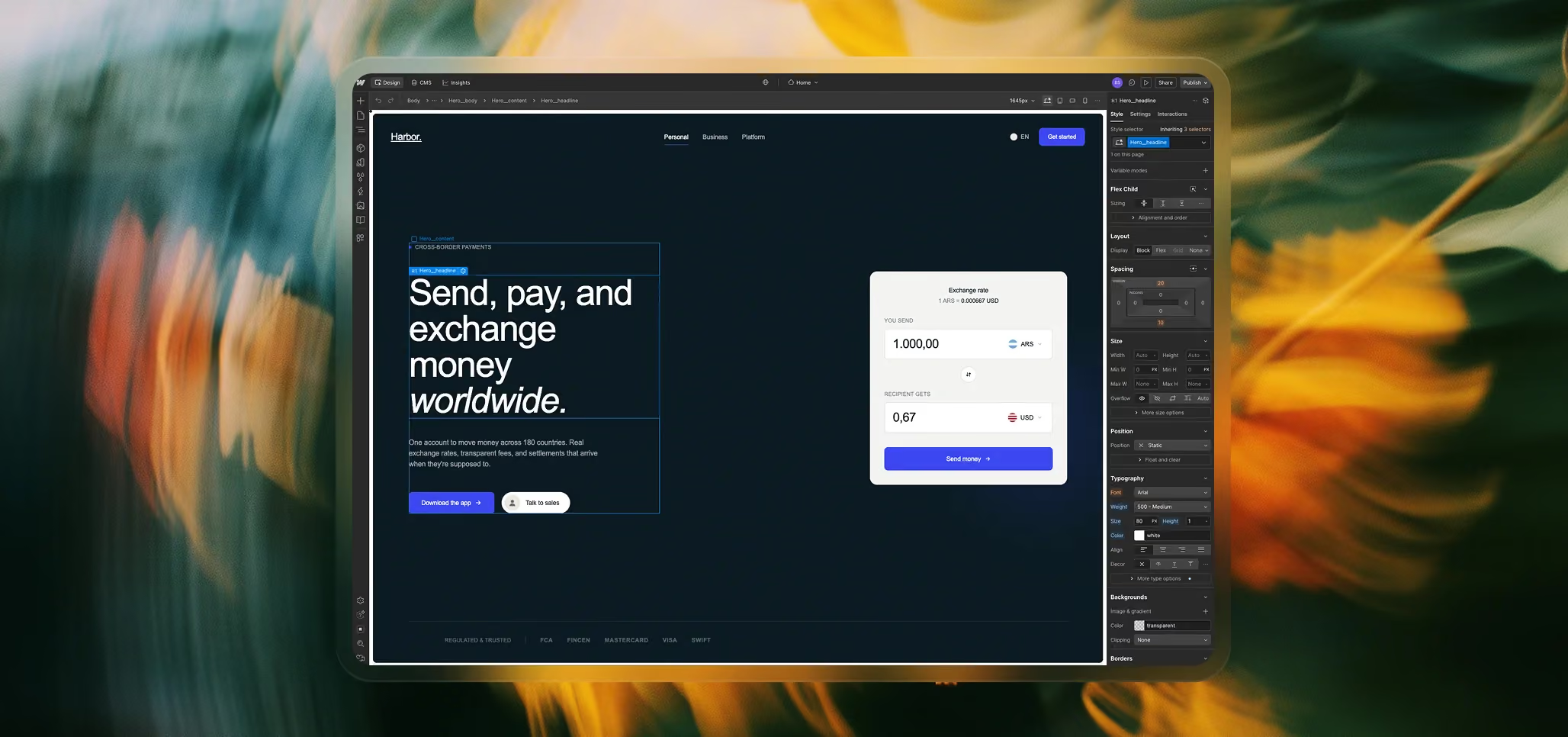
What converts to native Webflow elements
Most layout, styling, and content makes it through as real Webflow structure. That includes:
- Layout primitives — divs, sections, containers, grids, flexbox structures, columns
- Text content — headings, paragraphs, lists, links, buttons
- Media elements — images, videos, SVGs
- Static styling — backgrounds, colors, padding, margins, typography, borders, shadows
- CSS hover, focus, and active states — these come through as real Webflow interactions on the element
- CSS animations and transitions — keyframe animations and CSS transitions defined in your styles land as native Webflow CSS
If your AI tool generated a clean section with vanilla HTML, sensible class names, and CSS-based styling, almost all of it will arrive in Webflow as real elements you can edit in the Designer.
What comes through as custom code
Some things can’t be translated into native Webflow structures and instead get embedded as custom code blocks inside the section. That includes:
- JavaScript animations and interactions — anything driven by GSAP, vanilla JS scroll triggers, click handlers, intersection observers, or any other script. This lands as a custom code embed that runs on the published page.
- Complex CSS that doesn’t map cleanly — exotic selectors, certain pseudo-elements, or styles that depend on JavaScript-controlled classes
- Anything Webflow doesn’t have a native equivalent for — custom web components, unusual structural patterns, or styling techniques outside Webflow’s element model
Embedded code still works — it just runs the same way it would in a hand-coded site. The section behaves correctly on the published page, but the embed itself isn’t editable in the Designer the way native elements are.
Why some sections look “broken” in the Designer
This is the most important thing to understand about the Converter: the Webflow Designer doesn’t execute custom code. If your section relies on JavaScript animations to position elements, fade things in, or trigger interactions, those scripts don’t run inside the Designer view. What you’ll see is the static “before” state of the section — elements may overlap, content may look misaligned, or things that should be hidden might be visible.
That’s not a conversion problem. It’s how Webflow handles custom code embeds in general. The section will look and behave correctly once you preview or publish it.
How to preview a converted section properly
To see what your section actually looks like, you have two options:
- Use Webflow’s Preview mode with custom code enabled — toggle Preview in the top right, and make sure “Render custom code” is on. The Designer will execute the embedded scripts and you’ll see the section as it would render live.
- Publish to a staging URL — push the project to your [class].webflow.io[/class] staging site and view it there. This is the most reliable way to see the final result, since it runs in a real browser with no Designer quirks.
We recommend publishing for the first check on any converted section that uses animations. It takes a few seconds and removes any ambiguity about whether the section is working.
CSS animations vs. JavaScript animations
Worth calling out one more time, since it’s the most common source of confusion:
- CSS animations and transitions convert natively. They live in the Webflow class system and you can edit them in the Designer’s style panel.
- JavaScript animations (GSAP, ScrollTrigger, custom scripts) embed as code. They work, but they don’t render in the Designer and they aren’t editable via Webflow’s interactions panel.
If you have a choice when prompting an AI tool, asking for CSS-based animations gives you more editable output. Asking for GSAP gives you smoother, more sophisticated motion at the cost of a custom code embed. Both are valid — it just depends on how much you want to edit the result inside Webflow afterwards.
Figma output
Everything in this chapter so far is about Webflow. For Figma, the picture is simpler: layout, styling, text, and images convert to native Figma layers — frames, text nodes, fills, and rectangles you can edit normally. JavaScript-driven behavior doesn’t translate to Figma at all (which makes sense, since Figma is a design tool, not a runtime), so you’ll get the static visual of the section without animations or interactions.
That’s usually exactly what you want when you’re using the Figma path — a clean design starting point you can work into a larger file.
