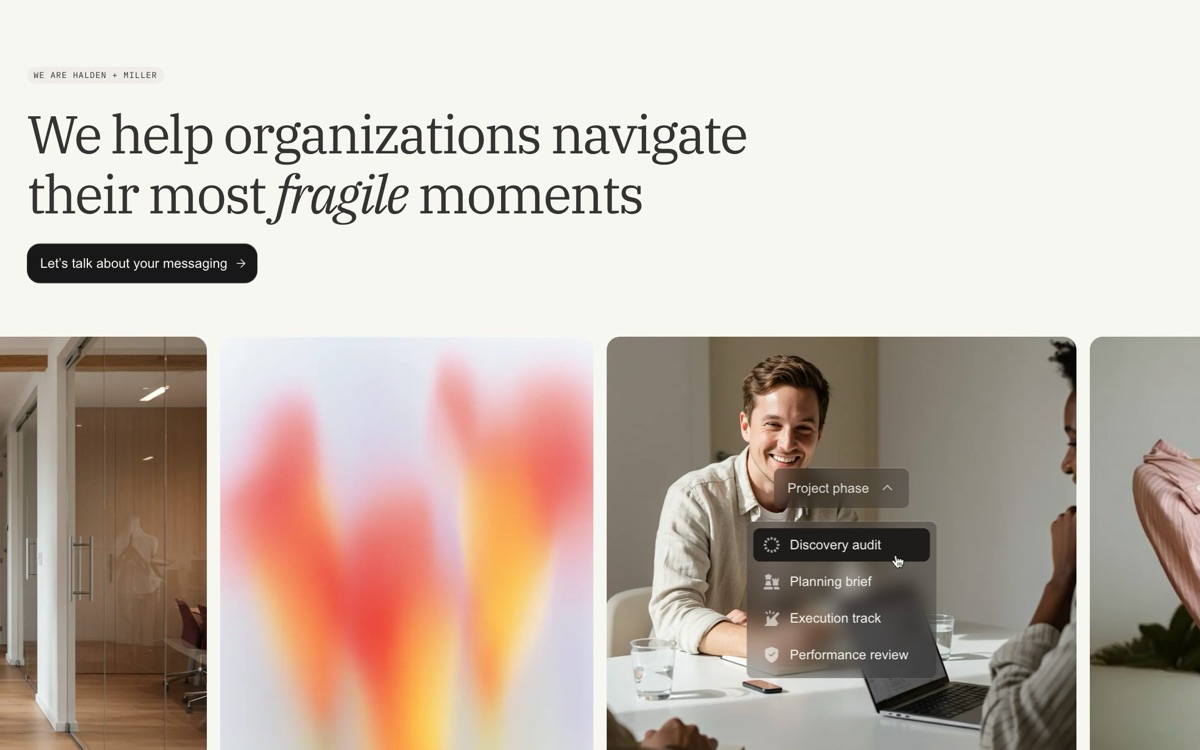
In Select mode, everything in the preview is editable. Click an element and a panel opens for it. Edits save as you go, and you can undo them with ⌘Z. Direct edits use no AI tokens.
Double-click text to type over it, or choose Edit text in the panel to change the words and links. The panel also controls the text style, font, weight, line height, letter spacing, alignment and colour.
For images, you can also set alt text, which screen readers read and search engines use.
The panel groups the controls: size, layout, spacing, fill, Corners & border, shadow, rotate and scale, and position. A screen size switch lets you edit for Desktop, tablet or phone sizes. When an element appears several times, such as repeated cards, choose All to change every copy at once. Choosing This one asks the agent to change only that one, which uses AI tokens.
Select an element, then Add an effect for hover, scroll and motion effects from the gem library: tilts, reveals, marquees and more. The agent adds it and you see it live. Effects use AI tokens.
On sites with a CMS, content that comes from it shows Edit in CMS. A section of repeated cards offers Connect to CMS, and a connected one offers Disconnect from CMS to keep it as static content on that page. See CMS.
Open the Sections tab for the page as a list. Hover a row to reveal its actions:
The navbar and footer rows are part of every page, so changes to them show site-wide.
⌫ deletes the selected element, ⌘D duplicates it, Esc lets go, and V switches to Browse so links work like a visitor's.
For site-wide looks, go to the Style panel.