Convert your first section in under a minute
The Converter is built to be fast. There’s no setup, no configuration, and no plugin to install in Webflow or Figma. The entire flow is paste, convert, copy, paste — and you’re done.
Here’s everything you need
- an account on BYQ Supply
- a Pro or Ultra plan (or one of your 5 free conversions on the Free plan)
- the HTML, CSS, and JavaScript you want to convert (from any AI tool, code editor, or project)
- a Webflow or Figma file ready to receive the section
How to convert a section
- Open the Converter on BYQ.
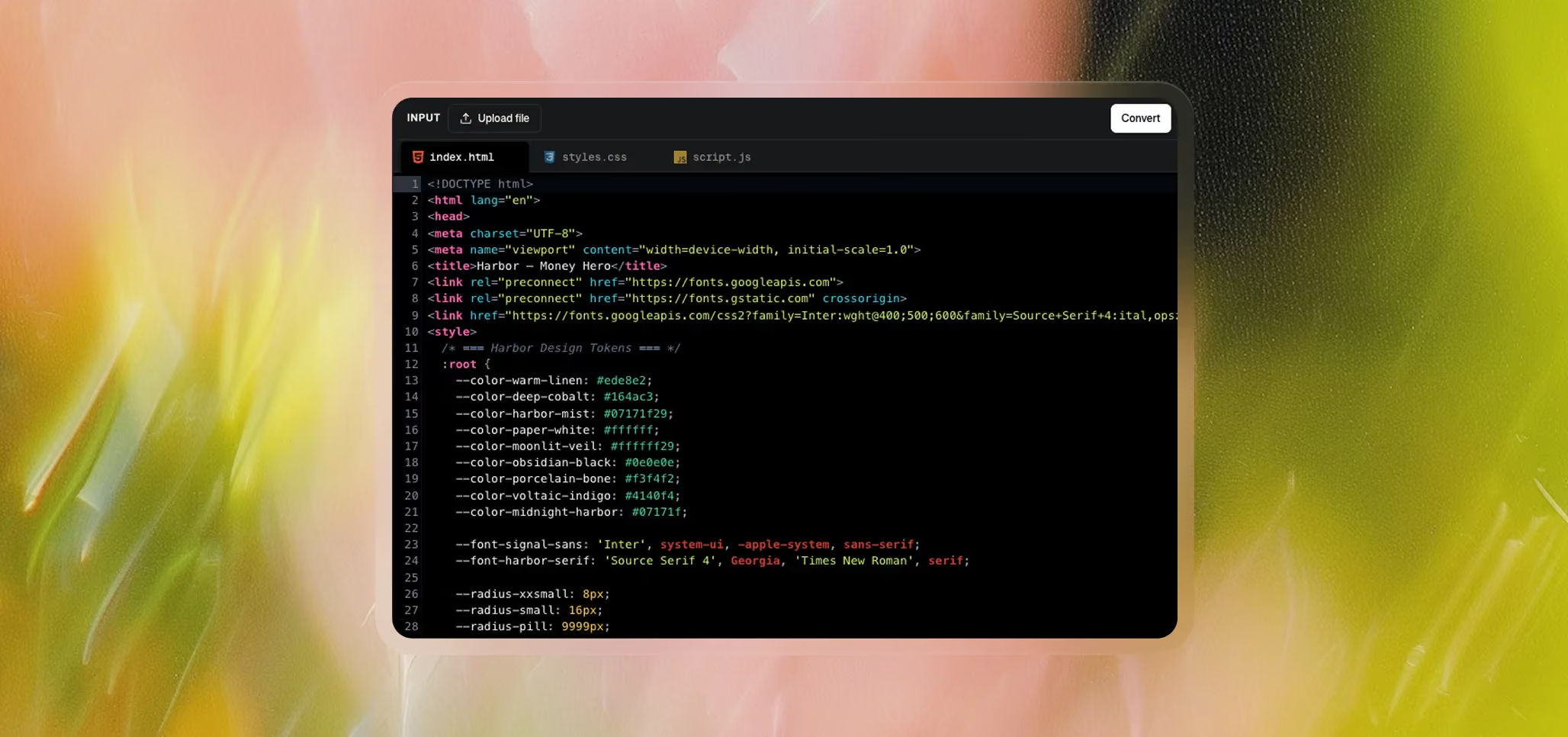
- Add your code in one of two ways:
- Paste directly into the code editor on the left, using the three tabs: [class]index.html[/class], [class]styles.css[/class], and [class]script.js[/class].
- Upload files with the “Upload file” button at the top. You can upload an HTML file, a CSS file, a JS file, or all three.
- Or paste a single file that contains everything. If your HTML already includes its CSS and JavaScript inline (which is common with AI output), just paste the whole thing into the [class]index.html[/class] tab. The Converter will detect the styles and scripts and split them into the right places.
- Edit if you need to. The code editor is fully functional — you can adjust the code before converting if something looks off.
- Click “Convert” in the top right.
- Preview the result. A popup opens showing your converted section in desktop, tablet, and mobile views, with two buttons in the top right: Copy to Figma and Copy to Webflow.
- Copy to your destination and paste it in.
That’s the entire flow. Most conversions take a few seconds.
Copying to Webflow
Click Copy to Webflow. The section goes onto your clipboard in Webflow’s native format. Open any Webflow project, click into the Designer, and paste — the section lands as real Webflow elements you can edit like anything you built by hand. No embed blocks, no plugin, no special steps.
We recommend pasting into a fresh, empty Webflow project first before moving to your real project. We cover why in Best Practices, but the short version: it’s a safe habit that takes a few seconds and saves you from edge cases.
Copying to Figma
Click Copy to Figma. The section goes onto your clipboard in a format Figma understands. Open any Figma file, paste, and you get real Figma layers — frames, text, fills — that you can edit and design around like a normal Figma file. No plugin needed.
Recent Conversions
Every section you convert is saved to your Recent Conversions on the Converter page, kept indefinitely. You can come back to any past conversion to re-copy it to Webflow or Figma without re-running the conversion.
This is useful when you’re iterating — generate, convert, paste, decide it’s not quite right, go back to your AI tool, and start again. Your earlier attempts are still there if you want to compare or pick the best one.
A typical first session
A common starting point: generate a section in Claude or another AI tool, copy the full HTML output (with inline styles and scripts), paste it into the Converter’s [class]index.html[/class] tab, click Convert, then copy to Webflow and paste into a fresh project to check it. Once you’re happy, paste it into your real project and continue building.
The next chapter explains what happens behind the scenes — what the Converter translates to native Webflow elements and what comes through as custom code.
