Keyboard shortcuts

Open panels, move around the canvas and edit without leaving the keyboard.
Works with
  • BYQ Website Builder

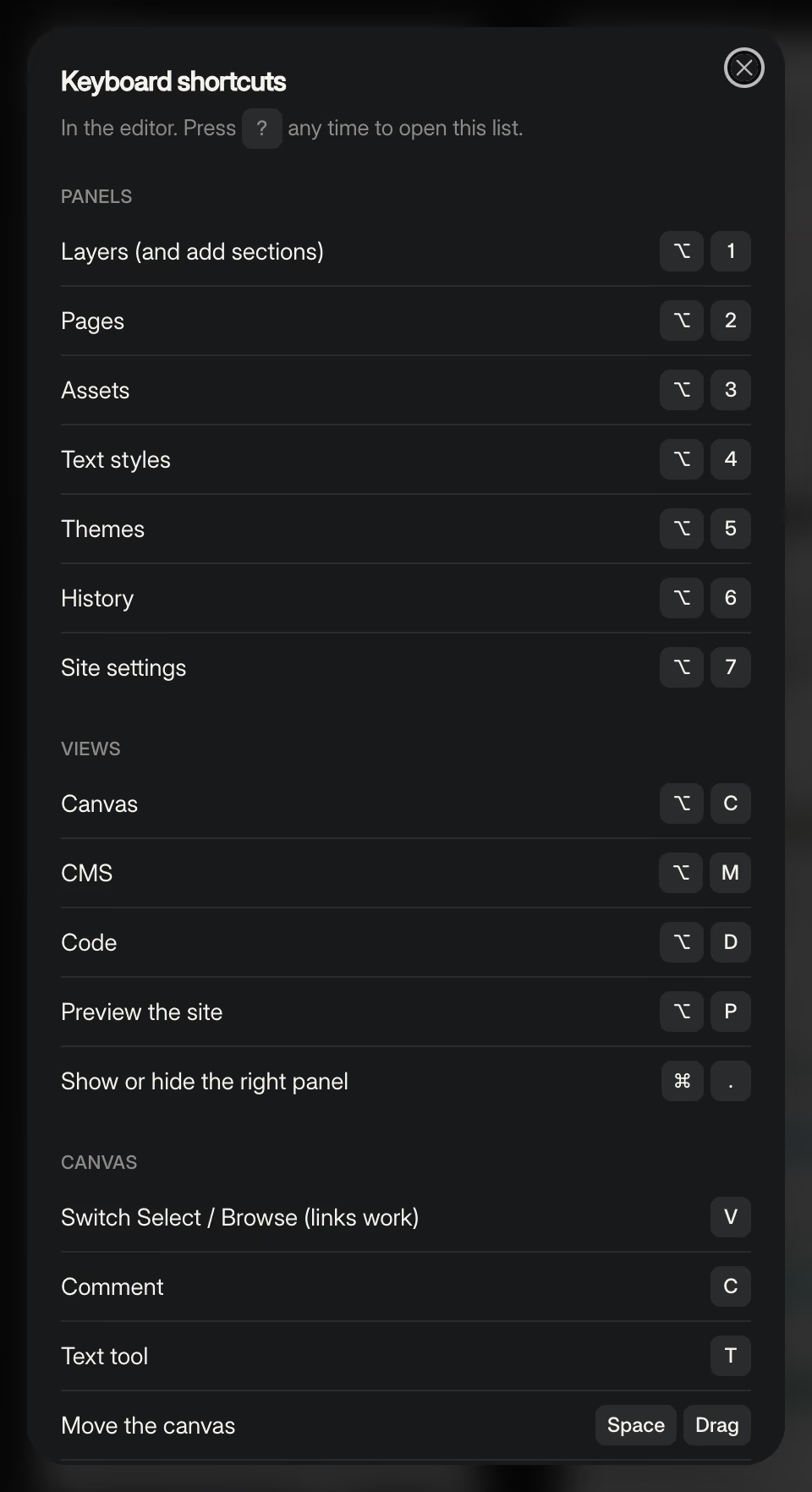
Press ? in the editor, or choose Keyboard shortcuts in the menu, to see this list inside the builder. On a Mac, ⌘ is Command and ⌥ is Option. On Windows, use Ctrl and Alt.

The Keyboard shortcuts list in the builder, grouped as Panels, Views and Canvas
The shortcuts list inside the builder. Press ? to open it.
Panels

Press the key again to close the panel.

  • ⌥1: Layers (and add sections)
  • ⌥2: Pages
  • ⌥3: Assets
  • ⌥4: Text styles
  • ⌥5: Themes
  • ⌥6: History
  • ⌥7: Site settings

The numbers follow the rail from the top, so ⌥1 is its first icon.

Views
  • ⌥C: Canvas
  • ⌥M: CMS
  • ⌥D: Code
  • ⌥P: Preview the site
  • ⌘.: show or hide the right panel
Canvas
  • V: switch Select and Browse (links work in Browse)
  • C: Comment tool
  • T: Text tool
  • Space and drag: move the canvas
  • Shift+1: zoom to fit
  • Shift+2: zoom to the selection
  • ⌘+: zoom in
  • ⌘-: zoom out
  • ⌘0: zoom to 100%

More about the canvas in The canvas and breakpoints.

Editing
  • Double-click: edit text
  • ⌫ (Backspace): delete the selected element
  • ⌘D: duplicate the selected element
  • ⌥↑ and ⌥↓: move the selected element earlier or later
  • ⌘Z and ⌘⇧Z: undo and redo
  • Esc: let go of the selected element

In the Layers panel, the arrow keys move between rows, → opens a row and ← closes it.

Help
  • ?: open the shortcuts list (⌘/ works too)

Shortcuts work when you are not typing in a field. Typing in the chat or a text box never triggers them. For undo, see Versions, undo and restore.

Ask the agent for a change in plain words, queue more while it works, answer its questions and attach images or a brief.