Recolor any section to fit your brand
Every section on BYQ comes with a Theme editor that lets you swap its color scheme before copying. The original colors of the section get replaced with the palette you choose, while the layout, typography, and class structure stay exactly the same. When you copy the section afterward, the new colors come with it.
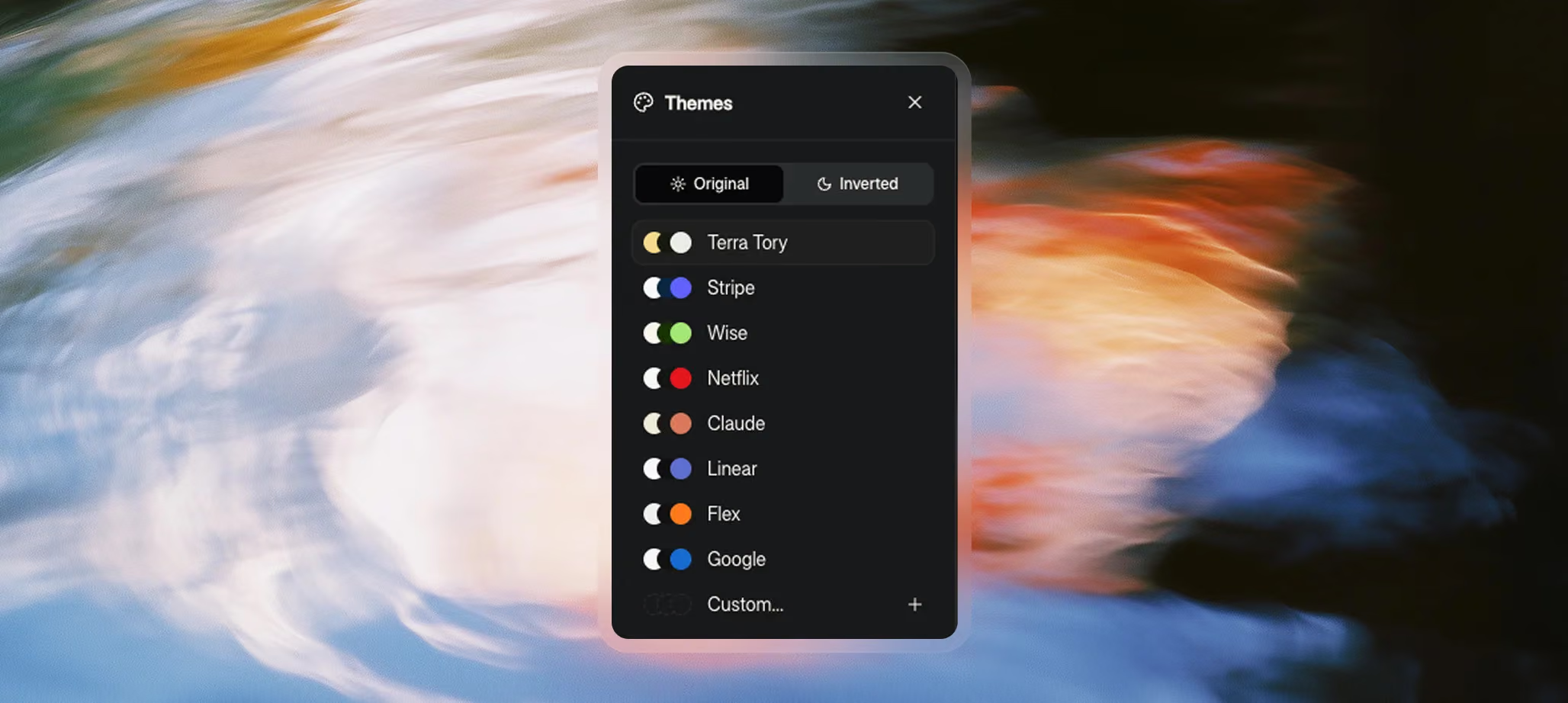
How to open the Themes panel
- Open any section on BYQ.
- Click the palette icon in the top right of the section popup (the “Edit theme” button).
- The Themes panel opens on the right side of the popup, showing presets, the Original / Inverted toggle, and the URL palette extraction field.
The section preview updates in real time as you choose a theme, so you can see exactly what you’ll be copying.
Preset themes
Eight ready-made themes are available, each based on a recognizable brand palette:
- Forerunner — green-and-cream from our Forerunner template
- Stripe — purple and blue
- Wise — bright green
- Netflix — red and black
- Claude — warm orange and cream
- Linear — indigo and slate
- Flex — orange
- Google — blue
Click any preset to apply it instantly. The preview updates in real time. You can switch between presets as many times as you like.
Custom themes from your own website’s URL
If none of the presets match what you need, you can extract a palette from any website you own or want to design for:
- Click “Custom” at the bottom of the preset list.
- Paste your website’s URL into the field.
- Click “Extract palette.”
BYQ analyzes the site and pulls a color palette from it — usually the dominant brand colors, backgrounds, and accents. The extracted palette is then applied to the section the same way a preset would be. The whole extraction usually takes a few seconds and works well for most sites.
If the extraction produces results that don’t quite match what you wanted, you can either tweak the colors manually inside the Custom panel or pick a different preset instead.
Original vs. Inverted
Each theme has two modes: Original and Inverted. The toggle is at the top of the Themes panel.
- Original — uses the palette as it would normally appear (typically light backgrounds with dark text, or whatever the theme’s default is)
- Inverted — flips light and dark, swapping the role of every color so the section reads as a dark variant of the same palette (or vice versa)
This is useful when you want a section in a darker tone for contrast — for example, a dark hero followed by light content below it — without leaving the same color family.
What Themes change and what they don’t
Themes only change colors. Everything else about the section stays exactly the same:
- Changes: background colors, text colors, button colors, accent colors, icon colors
- Doesn’t change: layout, spacing, typography, font family, font size, animations, classes
This means when you copy a themed section into Webflow, you get the same class structure as the original — just with different color values plugged in. A class that was [class]background-color: #181e25[/class] in the original section becomes [class]background-color: <new color>[/class] in the themed version. The class itself is unchanged.
How Themes affect copying
Whatever theme is applied when you click Copy is what gets copied — for Webflow and Figma:
- Copy to Webflow → the section pastes with the new color values applied to the original classes
- Copy to Figma → the section pastes with the new colors applied to its fills and text styles
Copy to Framer and Copy Prompt are exceptions.
- Copy to Framer doesn’t carry theme changes over due to technical limitations on how Framer handles pasted styles. The section will paste with its original colors, regardless of the theme you picked.
- Copy Prompt doesn’t carry theme changes either, because the prompt always reflects the original section as it lives in our database. If you want the AI coding tool to use a specific palette, describe it in your follow-up prompt — or pair the Copy Prompt with a Design System that defines the palette explicitly.
So in practice: Themes work for Webflow and Figma copies. For Framer and Copy Prompt, the original colors come through regardless.
Plan availability
Anyone can open the Themes panel and preview any section in any theme — this part is free for everyone. The plan rules apply at the copy step:
- Free plan — copy any free section (around 50 in our collection) in any theme you’ve applied
- Pro and Ultra — unlimited copies across every section, in any theme
So you can browse, try themes, and explore the library on Free — but to copy a non-free section with your chosen theme, you’ll need Pro or Ultra.
A few practical tips
- Try a few presets before committing. The same section can look completely different in Stripe purple vs. Netflix red vs. Wise green. It’s worth flipping through a few to find the right fit.
- URL extraction works best on sites with clear brand colors. Sites with strong, consistent palettes (most marketing sites, product pages, and brand sites) tend to produce the cleanest extractions. Sites with very neutral or photo-heavy palettes may produce less useful results.
- Themes pair well with Edit with AI. Apply a theme to set the palette, then use Edit with AI to make small tweaks on top — like highlighting one tile in the accent color, or swapping out an icon. Both customizations carry into the copy.
