AI & MCP
BYQ is now in Claude's connector directory
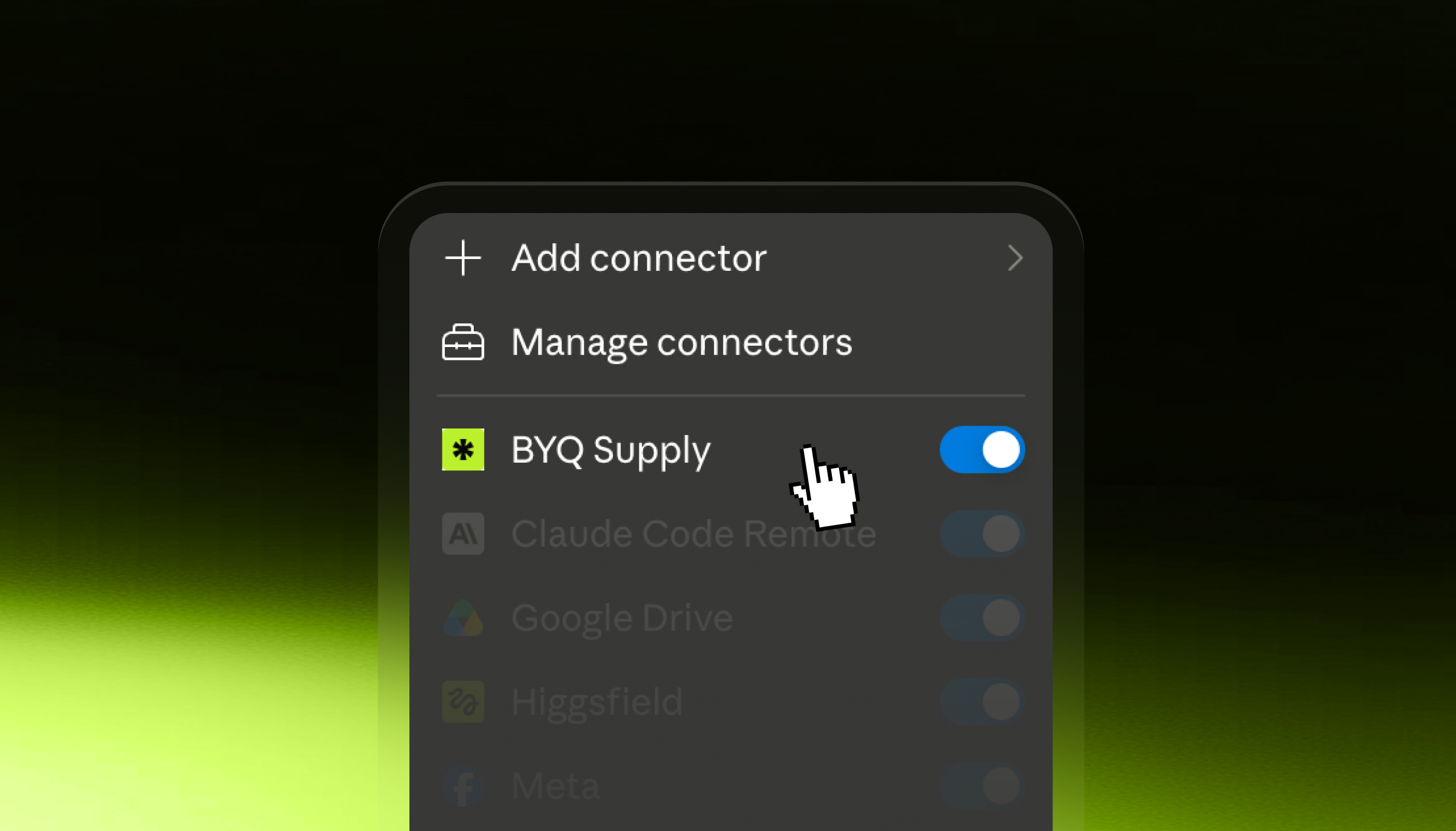
No key to generate. No config file to edit. Find BYQ in the list, click connect, and Claude can search the library itself.
No key to generate. No config file to edit. Find BYQ in the list, click connect, and Claude can search the library itself.
BYQ Supply is now in Claude's connector directory.
That means you no longer set our MCP up. You find it in a list and click connect.
Until now, connecting BYQ to Claude took a few minutes and a bit of care. Generate an MCP key in your dashboard, add the server to your tool, paste the key, hope you pasted it into the right field.
Now it's:
No key, no JSON, nothing to keep somewhere safe. It works in Claude on the web, the desktop app, and on iOS and Android — so the library is reachable from your phone, which was never true before.
If you're on a Team or Enterprise plan, an owner adds it once for the organisation and everyone else connects with their own account.
BYQ is listed as a Community connector, which means it's been through Claude's automated review. Worth knowing what it can and can't touch: every tool it exposes is a search or a fetch against our own library. It looks things up and hands them to Claude. It has no access to your projects or your files.
The same library — except Claude searches it directly instead of waiting for you to fetch things.
Sections. 2,667+ production-grade sections, searched by intent rather than keyword. Ask for "a parallax hero" or "pricing with a monthly toggle" and real matches come back, with thumbnails inline so you can compare before committing. What it fetches isn't a screenshot — it's a full build spec with working reference code.
Design systems. Tokens, type scale, spacing and colour roles, as files a model can actually read. Feed one in first and everything after it comes out on-brand.
Gems. 242+ GSAP micro-interactions, self-contained.
Our wireframe library is in there too, if that's how you work.
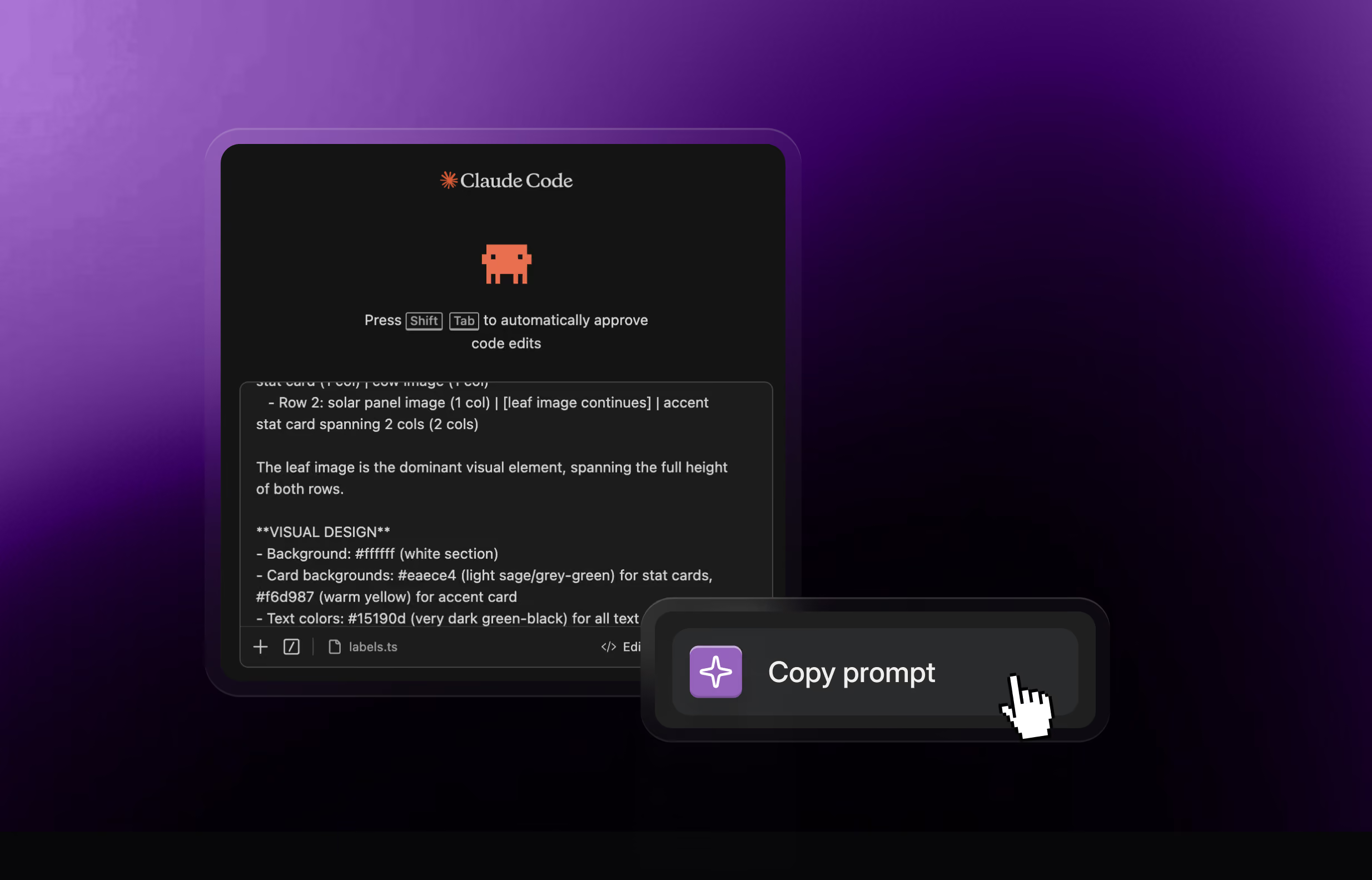
Pull the Halden Miller design system from BYQ and use it as the styling foundation for this project.
Do this before anything else. It's the difference between sections that agree with each other and sections that don't.
Build this page using sections from the Babka collection only.
Sections come in collections, and the ones inside a collection were designed to sit together. Mixing six collections gives you six good sections and one incoherent page.
Add a BYQ pricing section to this app, matching our existing components.
You don't need a blank project. Every section arrives with instructions to read your existing code first and adapt to your conventions before it lands.
The three prompts above are the building blocks. Strung together, they're a working method — and it's the same order you'd use in Figma or Webflow, which is why it holds up.
1. Set the direction once. Ask for a design system before a single section exists. Tokens, type scale, spacing rhythm, colour roles. One deliberate decision, made when it's cheap. The alternative is deciding colour forty times as you go, which is how sites end up with eleven greys.
2. Block out the page. "A service page for a solar installer: hero, three-step process, proof, pricing, FAQ, CTA. Babka collection, using the design system already loaded." You'll get a real page, not a wireframe, because every section is a finished piece of design rather than a box with lorem ipsum in it.
3. Argue with the structure. This is the part people skip. Cut the section you didn't need. Move proof above pricing. It costs minutes now and days later.
4. Add motion last. "Add a BYQ gem — magnetic hover on the primary CTA only." Motion applied at the end is motion you can judge. Motion applied throughout is a screensaver.
Four steps, and the output stops looking generated — because at no point did anything get generated. It got assembled from work that already existed.
Worth being clear, because "AI builds your website" is a claim that has burned a lot of people.
This is a design library your AI can reach, not a site generator. Claude isn't inventing a hero for you and hoping. It's searching 2,667 sections that a designer drew, spaced and argued over, then adapting one to your project. The judgement about what good looks like already happened — months or years ago, by a person.
That has a real consequence: it doesn't replace the decisions. You still choose the direction, decide what the page needs, and cut what it doesn't. What disappears is the hour of pasting, and the slow drift where section four stops matching section one.
If what you want is "make me a website" with nobody at the wheel, this isn't that, and it never will be.
The directory listing is for Claude itself. If you connect through Claude Code, Cursor, Lovable or anything else that speaks MCP, your key still works exactly as before — nothing to redo.
The MCP is available on Pro and Ultra plans on BYQ Supply.
New to this? BYQ MCP for designers covers what an MCP actually is, and the workflows worth stealing.